How to Transfer GBWhatsApp Data to a New Phone?
Have you ever switched to a new phone and noticed your GBWhatsApp chats, photos, or settings didn’t move with you? It’s a common frustration — conversations disappear, files go missing, and all your customizations reset. For many users, it feels like starting from scratch.
Transferring GBWhatsApp data to a new phone is essential if you want to keep your entire chat history and app preferences. Since GBWhatsApp doesn’t sync with Google Drive, you’ll need to move your data manually. The process isn’t difficult — this guide will show you exactly how to back up, transfer, and restore everything safely.
Transfer Your GBWhatsApp Memories Safely
Your GBWhatsApp chats often contain meaningful conversations, important media, and work-related details. Without a proper transfer, you risk losing all of that permanently. Moving your GBWhatsApp data correctly ensures that you:
- Keep all your messages, photos, and files.
- Retain themes, privacy settings, and custom preferences.
- Avoid unexpected data loss when changing phones or reinstalling the app.
Step-by-Step Guide to Transfer GBWhatsApp Data
Follow these simple steps to transfer your GBWhatsApp data to a new device safely and completely.
Back Up Your Data on the Old Phone
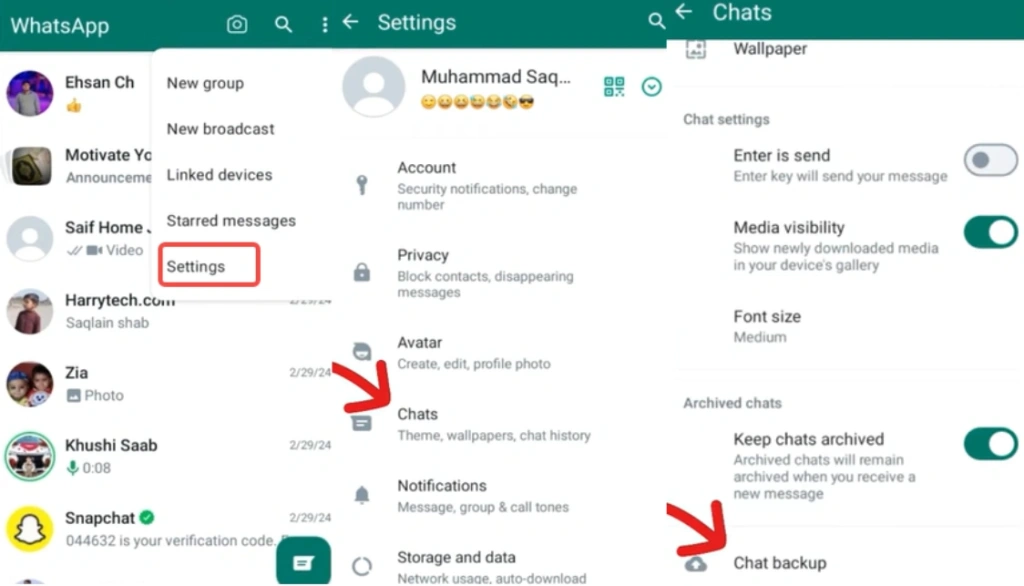
- Open GBWhatsApp → Settings → Chats → Backup.
- Wait until the backup is finished — this creates a local backup file.
- Open File Manager → Internal Storage → GBWhatsApp, then copy the entire folder.
Transfer the Backup Folder to Your New Phone
Move the folder using one of the following methods:
- USB cable connection
- Bluetooth or Wi-Fi transfer app
- Cloud storage such as Google Drive or Dropbox
Make sure you copy the Databases and Media folders completely.
Install GBWhatsApp on the New Phone
- Download the same GBWhatsApp version from a trusted source(like our website).
- Enable Install from Unknown Sources in your phone settings.
- Install the APK, but do not open it yet.
Place the Backup Folder Correctly
- On your new phone, open File Manager → Internal Storage.
- Paste the GBWhatsApp folder you transferred earlier.
- Confirm that the backup file path.
Restore Your Backup
- Launch GBWhatsApp and verify your phone number (the same as before).
- When prompted, tap Restore.
- Wait until the restore is complete. Your messages and media should reappear.
Check That Everything Works
- Open a few chats to confirm your history and media are restored.
- Review your GB Settings for privacy, themes, and notification preferences.
Common Problems and How to Fix Them
Backup not detected
- Ensure the folder name is exactly GBWhatsApp (capital letters included).
- Verify the backup is in Internal Storage, not on the SD card.
- Check that the file exists inside the Databases folder.
Restore process fails or freezes
- Reinstall GBWhatsApp using the same version you used for backup.
- Clear the app cache and try again.
- Ensure your new phone has enough free storage space.
Media files missing after restore
- Copy the GBWhatsApp/Media folder again manually.
- Open your phone’s Gallery app and allow storage permissions for GBWhatsApp.
App crashes after restore
- Restart your device and reopen GBWhatsApp.
- If it keeps crashing, uninstall and reinstall from a verified APK source.
Each of these issues is common for beginners and usually happens because of folder placement errors or mismatched versions. Double-check those two areas first before repeating the process.
Tips for a Smooth Transfer
- Always back up your data before updating or switching devices.
- Use the same phone number when restoring.
- Avoid renaming or modifying backup folders manually.
- Keep an extra copy of the GBWhatsApp folder in your computer or cloud storage.
Privacy and Safety Considerations When Transferring
GBWhatsApp doesn’t support Google Drive sync, meaning all data stays locally on your device. While this gives you full control, it also makes you responsible for protecting it.
- Do not share your backup folder with others.
- Use encrypted or password-protected storage for safety.
- Only download GBWhatsApp from trusted sources to avoid corrupted files.
Enjoy Your Chats on the New Device
Once you’ve completed the transfer, your GBWhatsApp chats, photos, and settings will appear exactly as they did before. A proper backup routine ensures that no matter how often you change devices, your conversations and memories stay intact. Take a few minutes to back up regularly — it’s the simplest way to protect your GBWhatsApp data for the long run.